How To Turn Your Modern Mac Into an Old-School Mac OS X
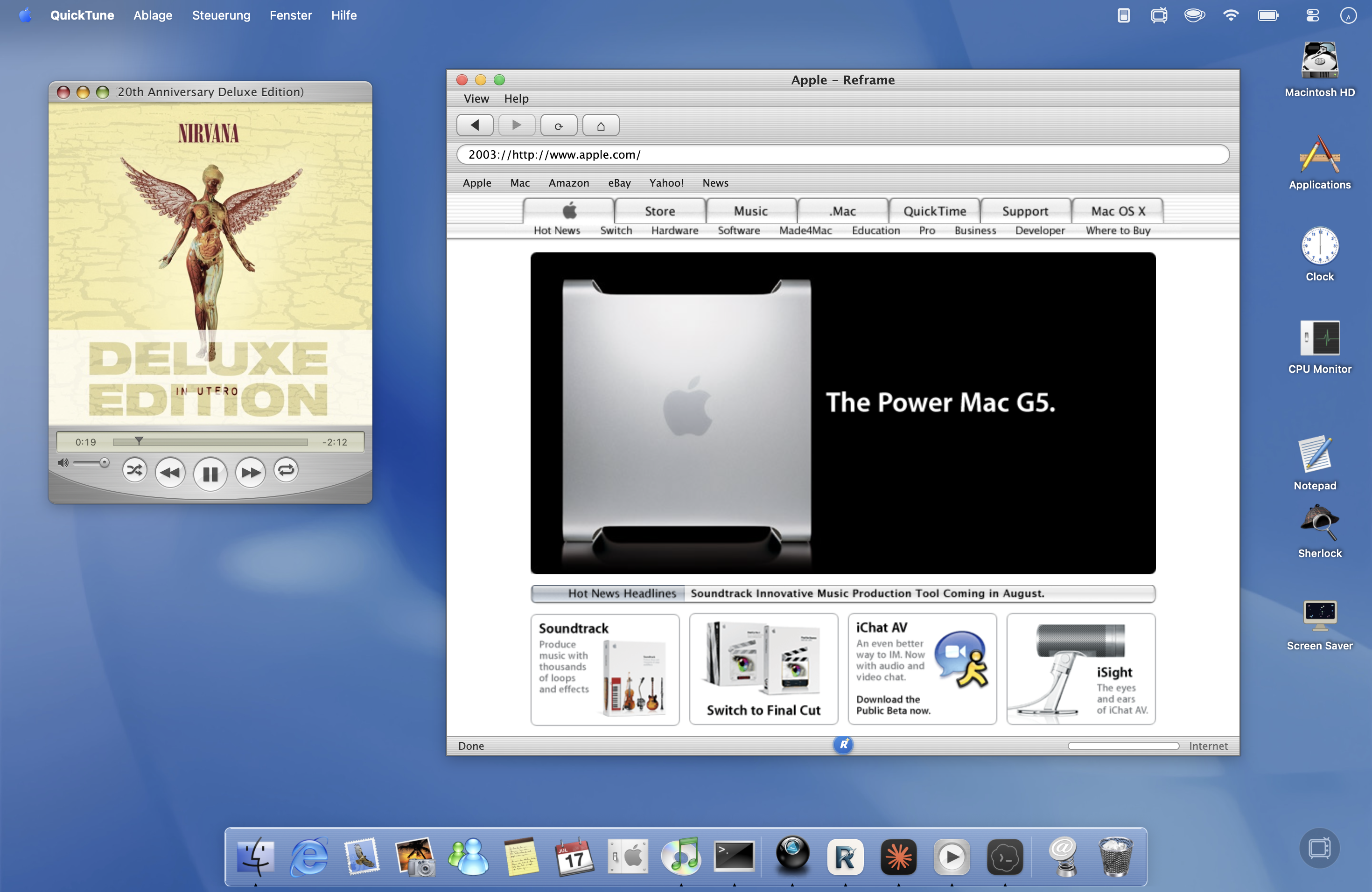
I build RetroMac and Reframe. The question I get most: "How do I get my Mac looking like it did back then – Aqua, glossy dock, brushed-metal Safari?"
Short answer: three tools, 15 minutes. I use RetroMac for the desktop and dock, Reframe for the browser, and QuickTune for music. Here's my exact setup.
The three building blocks
| Tool | What it does |
|---|---|
| RetroMac | Desktop, dock, icons, wallpaper, shaders |
| Reframe | Browser in the "Aqua Safari" look |
| QuickTune | Music in the iTunes / QuickTime 7 look |
All modular. Want just the browser retro? Use only Reframe. For the full time capsule, I combine all three.
Step 1: RetroMac – the Mac OS X theme
Download RetroMac, drop it in Applications, launch it. On first run it asks for a few permissions (Accessibility, and Screen Recording depending on the feature) – it needs those for the dock and shaders. The built-in Health Check tells you when everything's green.
Then open the Theme Picker and choose Mac OS X / Aqua. One click gets you the wallpaper, the glossy dock with magnification, classic icons, and the Apple logo in the menu bar.
Dial in the icon size
On a 5K display the icons get small fast. Go to Theme Settings → Advanced and adjust the icon size (plus magnification, transparency, position). A real Aqua dock is allowed to be confidently big.
Apple icon in the Floating Launcher
The Floating Launcher is my quick toggle for switching looks. You can swap its icon – I use the rainbow Apple for it. Matches the rest.
Step 2: Reframe – Safari like it's 2003
An Aqua desktop with a modern Chrome window on top? Breaks instantly. That's why I made Reframe.
Reframe is my open-source retro browser. Modern engine underneath, so you're browsing the real, current web – but the interface is the one from back then, down to the toolbar icons, the status bar, and the spinning throbber in the top right.
Install and pick the theme
Download Reframe from myretromac.app/reframe (or GitHub), install it, open the theme picker, and pick Aqua Safari – early-2000s Safari with brushed metal. Themes switch at runtime, no restart.
Wayback Mode
Bonus: Wayback Mode loads pages through the Internet Archive. Point it at 2003 and a site from today shows you its version from back then.
Step 3: QuickTune – the iTunes look
For music I use QuickTune by Mario Guzmán. Native mini player in the QuickTime 7 look (Tiger/Leopard) – brushed metal, glassy buttons, LCD display. It controls your modern Apple Music app: old look, current library.
Grab it here, launch it, park it in a corner of your Aqua desktop. That's the trifecta: desktop, browser, music in the same look.
Step 4 (optional): turn on the CRT shader
If the pixels feel too sharp: in RetroMac under Shaders, pick a CRT or LCD preset and keep the intensity low – scanlines, a slight vignette, a bit of glow, without making text unreadable. Toggle it with a hotkey. If your Mac runs hot, "half resolution" and the performance profiles help.
Getting back
None of this is a one-way street. RetroMac restores the dock, menu bar, icons, wallpaper and appearance in seconds via its Restore function. Reframe and QuickTune are separate apps – quit or delete them, no traces.
That's it. Give it a shot.
FAQ
Does this slow my Mac down?
No, it all sits as a layer over the system. Only heavy CRT shaders cost GPU – and there are performance profiles and "half resolution" for that.
Is it reversible?
Fully. RetroMac has Restore functions for everything; Reframe and QuickTune you just uninstall.
Real websites in Reframe?
Yes, modern engine underneath. Wayback Mode is optional.
Do I need all three?
No. Just the browser? Reframe. Just the desktop? RetroMac. The full thing? All three.
QuickTune and Spotify?
QuickTune controls Apple Music.
Where are icon size & co.?
Theme Settings → Advanced.