Old-School Mac System 6 or 9, but on a Modern Mac
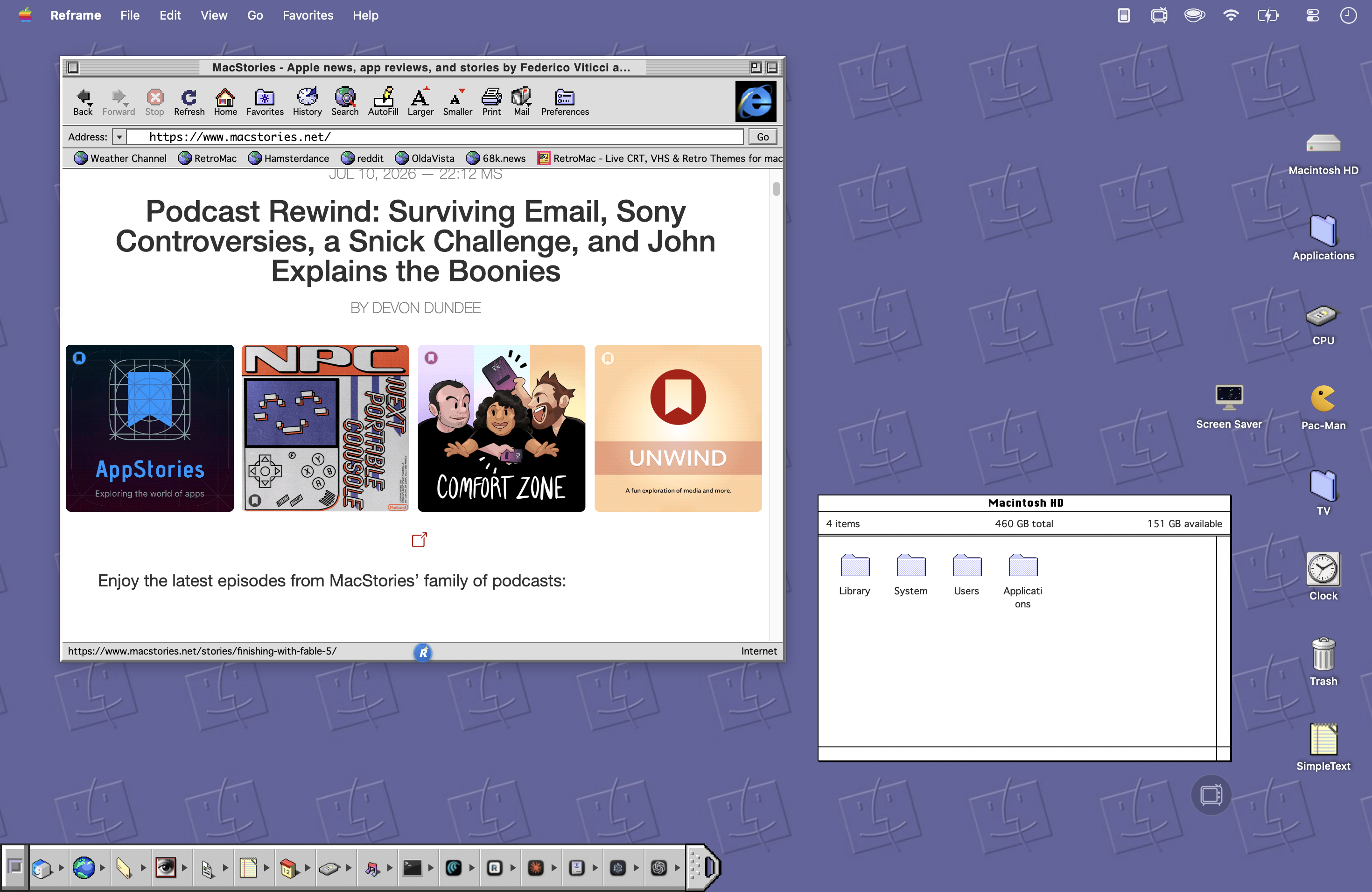
I build RetroMac and Reframe. After my Mac OS X guide, the follow-up question was inevitable: "Can you go further back?"
Yes. Much further. Mac OS 9 with its platinum windows and pinstripes, or System 6 in pure black-and-white – no gradients, no anti-aliasing, no color. Three tools, 15 minutes: RetroMac for the desktop, Reframe for the browser, Classic Mac Finder for file management.
Here's my exact setup.
The three building blocks
| Tool | What it does |
|---|---|
| RetroMac | Desktop, dock, icons, wallpaper, shaders |
| Reframe | Browser in the Internet Explorer 4.5 look |
| Classic Mac Finder | Pixel-for-pixel clone of the original Finder |
Pick your era first: Mac OS 9 if you want platinum grey and color icons, System 6 if you want the real thing – 1-bit monochrome, everything dithered. System 6 is the harder, purer look. It's also the more fun one.
Step 1: RetroMac – System 6 or System 9
Download RetroMac, drop it in Applications, launch it. On first run it asks for a few permissions (Accessibility, and Screen Recording depending on the feature) – it needs those for the dock and shaders. The Health Check tells you when everything's green.
Open the Theme Picker and choose System 9 or System 6. System 9 gives you platinum window chrome, the classic Apple menu and color icons. System 6 strips everything down to monochrome – if you've never worked in pure black-and-white for an afternoon, it changes how you look at your screen.
Pick a matching wallpaper
Right-click the desktop and choose a wallpaper from the context menu. RetroMac ships the ones that fit the theme – for System 6 the classic dithered greys, for System 9 the platinum patterns. Small detail, big difference: a modern 5K photo wallpaper under a System 6 menu bar kills the illusion instantly.
Dial in the icon size
Go to Theme Settings → Advanced and adjust the icon size. Classic Mac icons were 32×32 – on a modern high-res display they either vanish or look right, and the difference is one slider. Take the minute.
Apple icon in the Floating Launcher
The Floating Launcher is my quick toggle for switching looks. Swap its icon to the rainbow Apple – for System 6 and 9 that's not retro kitsch, that's period-correct.
Step 2: Reframe – the web in 1997
A System 6 desktop with a modern Chrome window on top? Breaks instantly. That's why I made Reframe.
Reframe is my open-source retro browser. Modern engine underneath, so you're browsing the real, current web – but the interface is the one from back then, down to the toolbar icons, the status bar and the spinning throbber.
Install and pick the theme
Download Reframe from myretromac.app/reframe (or GitHub), install it, open the theme picker and choose Internet Explorer 4.5 – the Mac browser of the late 90s. Themes switch at runtime, no restart.
Monochrome and dithering
This is the setting that makes a System 6 setup actually work. Turn on monochrome pages and dithering in Reframe, and the modern web gets rendered the way a 1-bit Mac would have rendered it: no color, no smooth gradients, just dithered black-and-white patterns. Suddenly today's websites look like they came off a Classic II.
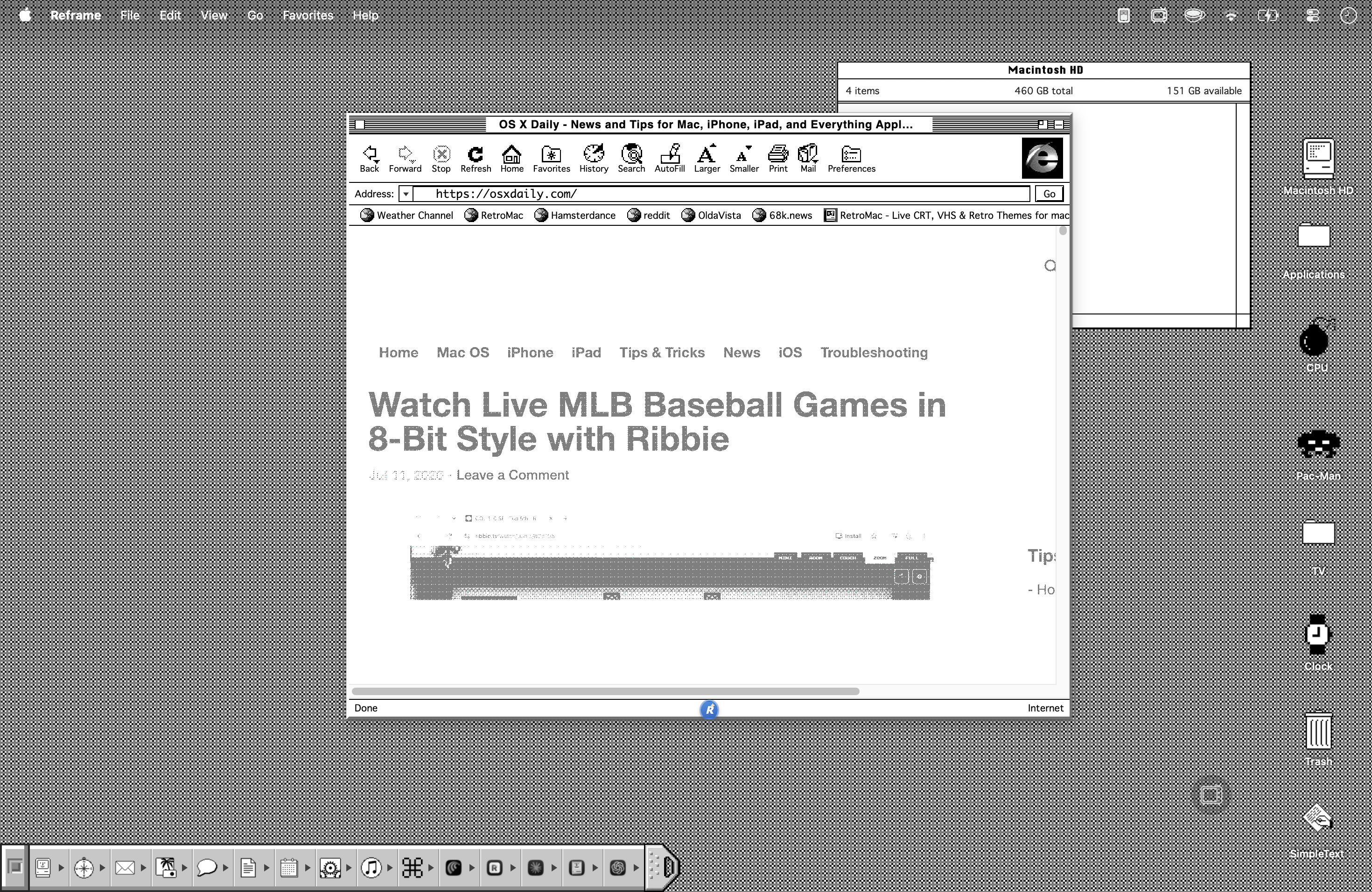
For a System 9 setup you can leave the pages in color and just keep the IE 4.5 chrome.
Dial-up sounds
Optional, and my favorite unnecessary feature: turn on the dial-up sounds. The handshake screech before a page loads. It adds nothing functionally. It adds everything else.
Wayback Mode
Point Reframe at a year and pages load through the Internet Archive. Set it to 1997 and the modern web disappears entirely – you're browsing the actual web your System 6 Mac would have seen.
Step 3: Classic Mac Finder
The Finder is where the old Mac lived. Classic Mac Finder is a pixel-for-pixel clone of the original Macintosh Finder, written in Objective-C and Cocoa, and it runs in parallel to the modern Finder – nothing gets replaced, nothing breaks.
Download it, launch it, and you get the real thing: spatial windows that remember exactly where you left them, the old icon views, the old menus. Combined with a System 6 or 9 theme, this is the piece that turns a costume into a working environment.
Step 4 (optional): turn on the shader
Old Macs didn't have retina displays. If you want to close that last gap, go to Shaders in RetroMac.
For System 6 and 9, I'd skip the heavy CRT curvature and use a black-and-white or low-intensity CRT preset – a touch of scanlines and glow is enough to make the dithering read like a real Compact Mac screen instead of a filter. Toggle it with a hotkey. If your Mac runs hot, "half resolution" and the performance profiles help.
Getting back
None of this is a one-way street. RetroMac restores the dock, menu bar, icons, wallpaper and appearance in seconds via its Restore function. Reframe and Classic Mac Finder are separate apps – quit or delete them, no traces.
That's it. Go build a 1991 Mac.
FAQ
System 6 or System 9 – which should I pick?
System 9 if you want a retro desktop you can still work in all day. System 6 if you want the full 1-bit monochrome experience and don't mind that it's a commitment.
Does the monochrome setting break modern websites?
No. Reframe renders the real page with a modern engine – monochrome and dithering are a display layer on top. Everything still works, it just looks like 1988.
Does Classic Mac Finder replace the normal Finder?
No. It runs alongside it as a regular app. Your macOS Finder stays exactly where it is.
Is it reversible?
Fully. RetroMac has Restore functions for everything; Reframe and Classic Mac Finder you just uninstall.
Where do I change the wallpaper?
Right-click the desktop – the context menu offers the wallpapers that match your active theme.
Where are icon size & co.?
Theme Settings → Advanced.